For DLSS settings on any GeForce RTX card, the short answer is: turn on DLSS Super Resolution in the game, start at Quality mode, and let the NVIDIA app choose the model on RTX 40 and 50. On RTX 30 and 20 cards, NVIDIA says its newest models cost more, so test the older one first. That one difference is the whole reason this guide exists.
DLSS used to be simple. Now it is a set of features, three model presets and a setting in the NVIDIA app, and the newest version, DLSS 5, is not an upscaler at all. This guide explains what each RTX series gets, which mode and model to pick, how to apply it, and how to check it worked.
CoreLoadout has not benchmarked these settings. This is a verified-spec guide built from NVIDIA's own pages, with independent test results named where we use them. Where NVIDIA gives no number, we say so.
Verified against: NVIDIA's DLSS 4.5 Super Resolution release (14 January 2026), NVIDIA's DLSS support table, and NVIDIA's DLSS 5 pages (September and 13 October 2026). Last updated 20 October 2026.
This is part of our FPS guide. It covers Step 2 of that guide in detail.
The quick answer: what to use on each card#
Find your card in the table. The "model" column is NVIDIA's own guidance, not our testing.
| Your card | Super Resolution | Frame generation | Model to use | Watch out for |
|---|---|---|---|---|
| GeForce RTX 50 | Yes | Frame Generation, Multi Frame Generation and Dynamic Multi Frame Generation | "Recommended" | DLSS 5 lighting is separate and optional (see below) |
| GeForce RTX 40 | Yes | Frame Generation (not Multi Frame Generation) | "Recommended" | Independent tests show a small cost on mid-range cards |
| GeForce RTX 30 | Yes | Not listed by NVIDIA | Test Preset K first | The newest models cost more on this series |
| GeForce RTX 20 | Yes | Not listed by NVIDIA | Test Preset K first | Same reason as RTX 30, and likely larger |
Sources: NVIDIA's DLSS hardware table and its DLSS 4.5 release page.
What DLSS actually includes#
"DLSS" is the name for several separate features. NVIDIA's support table lists them by card series:
- Super Resolution: renders the game at a lower resolution and rebuilds it at your screen resolution. RTX 20, 30, 40 and 50.
- DLAA: anti-aliasing at your full screen resolution, with no upscaling. It costs frames instead of saving them. RTX 20, 30, 40 and 50.
- Ray Reconstruction: cleans up ray-traced lighting. RTX 20, 30, 40 and 50.
- Frame Generation: adds extra frames. RTX 40 and 50 only.
- Multi Frame Generation: adds up to three extra frames per real frame. RTX 50 only.
- DLSS 5 neural rendering: adds lighting and material detail. RTX 50 only.
Only the first one is an upscaler, and it is the one that most of this guide is about. For frame generation, see our frame generation guide.
Step 1: Turn on Super Resolution in the game#
Open the game's graphics settings and find DLSS, usually under the upscaling or display options. Set Super Resolution on. If the game offers DLSS Frame Generation, leave it off for now. Get the upscaling right first, then decide about frame generation.
Not every game has DLSS. NVIDIA said in January 2026 that DLSS 4.5 Super Resolution works in "over 400 games and apps". If your game's menu has no DLSS option, nothing in this guide will add it, because the game has to support it.
Update the NVIDIA app and your graphics driver while you are here. The app is where the model setting lives in Step 4.
Step 2: Pick a quality mode#
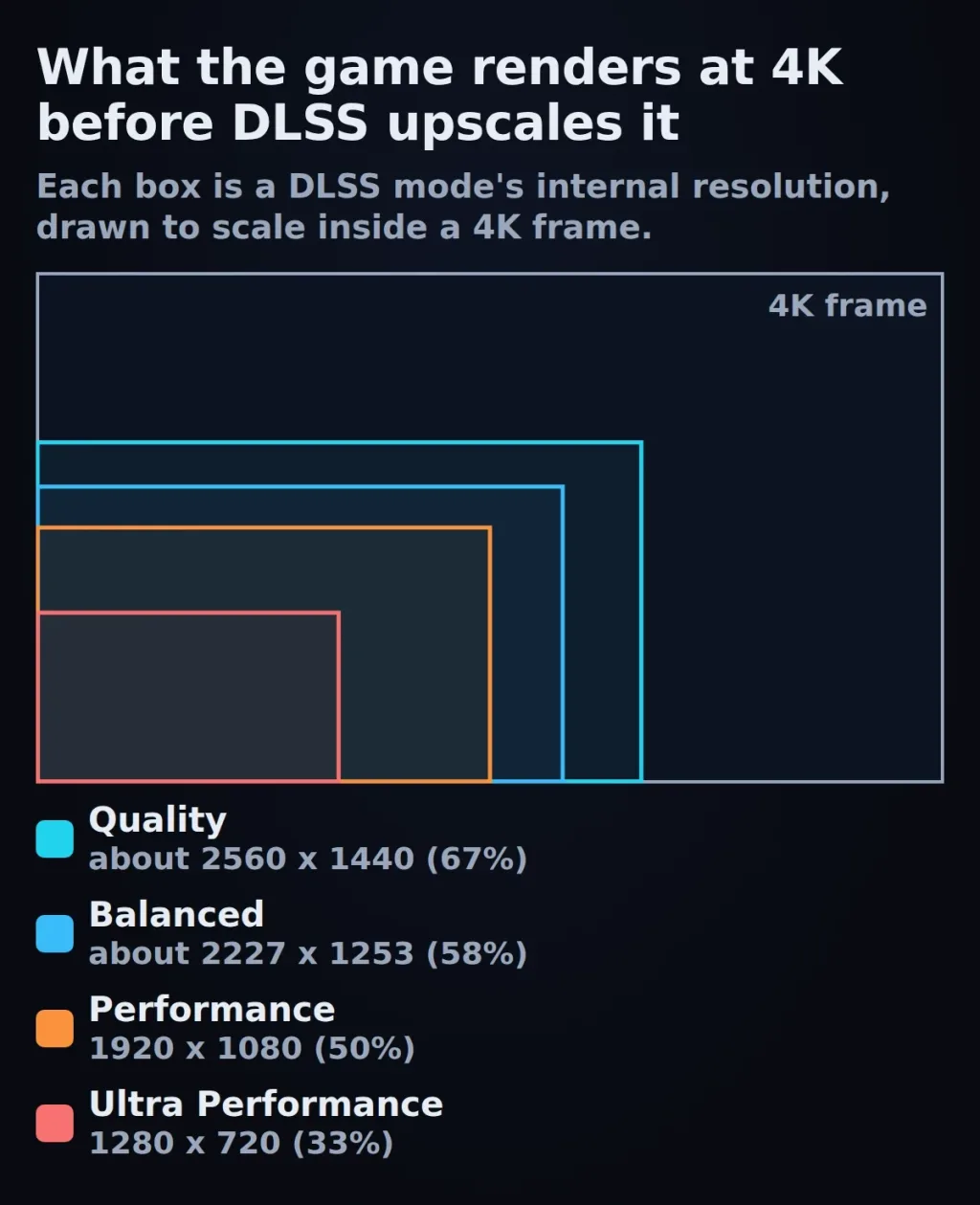
The mode decides how many pixels the game really renders before DLSS rebuilds the image. The published render scales are in our FPS guide: Quality is about 67% of your screen resolution, Balanced about 58%, Performance 50% and Ultra Performance 33%.
Start at Quality. If you still miss your frame-rate target, move to Balanced, then Performance. Ultra Performance is a last resort and works best on 4K screens, where 33% is still 1280 × 720.
DLAA is the other direction. It renders at 100% and improves the image, so it uses frames rather than saving them. Use it only when you already have FPS to spare.
Step 3: Choose the model (the step most guides skip)#
Since January 2026, DLSS Super Resolution has three model presets. NVIDIA names them in its DLSS 4.5 release:
- Preset K: the DLSS 4 model.
- Preset M: the DLSS 4.5 model, tuned for Performance mode.
- Preset L: the DLSS 4.5 model, tuned for Ultra Performance at 4K.
NVIDIA added a "Recommended" option to the NVIDIA app. It uses M for Performance mode, L for Ultra Performance and K for the other modes. NVIDIA says M and L also work in Quality, Balanced and DLAA, but the biggest gains are in Performance and Ultra Performance.
RTX 40 and 50: use Recommended#
NVIDIA's cost warning applies to RTX 20 and 30 cards, not to these. Independent testing agrees for the most part. HotHardware tested Cyberpunk 2077 in January 2026 and called the change on an RTX 4080 "extremely minimal". On an RTX 4060 Ti 8GB it measured up to about 15% fewer frames going from Preset K to Preset L in Performance mode, and the game still ran at 59.5 FPS. So on a mid-range RTX 40 card, the new model has a small cost, and it is still worth testing in your game.
RTX 20 and 30: test Preset K first#
NVIDIA says RTX 20 and 30 cards lack native FP8 support, so Presets M and L have a heavier performance cost on them, and these owners may prefer Preset K for a better balance. Independent reports back this up:
- HotHardware found the change on an RTX 3080 "very large", especially with Preset L.
- PC Games Hardware measured Preset M against the older CNN model in F1 25 at 1440p with DLAA. M cost about 28% more on Turing (RTX 20) and 26% more on Ampere (RTX 30), against 16% more on Ada (RTX 40). That compares M with the old model, not with K, so treat it as a sign of the gap between generations and not as an FPS loss for your card.
- Tom's Hardware reported community tests showing losses of 20% or more on RTX 30 and 20 cards.
None of these numbers is yours. The honest method is to test. Set the model, measure the same scene, and keep the one that gives you the better balance. The measuring steps are in our FPS guide.
Step 4: Apply the model in the NVIDIA app#
The game's own menu usually does not let you choose the model, so you set it in the NVIDIA app. NVIDIA's January 2026 steps are:
- Open the NVIDIA app and let it update.
- Go to the Graphics tab.
- Select DLSS Override - Model Preset.
- Choose a single game or apply it globally.
- For RTX 40 and 50, choose Recommended. For RTX 20 and 30, choose the custom option and pick Preset K for Super Resolution, as HotHardware describes.
- Exit the game to the desktop, then start it again.
Menu wording changes between app updates. Older NVIDIA guides call the "Recommended" option "Latest". If a label differs on your screen, pick the option that matches the preset names above.
To go back, choose "Use the 3D application setting" in the same menu. That returns control to the game.
Because the right model can differ by game, apply it per game first and use the global setting only if it suits all of them.
Step 5: Check that it worked#
Setting an override and having it apply are not the same thing. NVIDIA's own check takes ten seconds:
- Start the game.
- Press Alt+Z to open the NVIDIA overlay.
- Go to Statistics, then Statistics View, then DLSS.
- Read which model is active.
If it shows a different model from the one you chose, exit to the desktop, confirm the setting is saved for that game, and restart it.
Step 6: Add frame generation if your card has it#
Frame generation is a separate step, and it comes after upscaling. It needs a solid base frame rate, because it makes the picture smoother but does not make the game respond faster. AMD's guidance is to start from at least 60 fps. The NVIDIA pages we read give no equivalent number, but the reasoning is the same for any frame generation.
- RTX 40: DLSS Frame Generation.
- RTX 50: Frame Generation and Multi Frame Generation. NVIDIA's app advice is 3X for targets up to 180 FPS and 4X for 240 FPS or higher.
- RTX 30 and 20: NVIDIA's table does not list frame generation for them.
Our frame generation guide covers this in detail.
What about DLSS 5?#
DLSS 5 launched in September 2026, and it is easy to misread. NVIDIA describes it as 3D-Guided Neural Rendering: it adds lighting and material detail, such as skin, hair, foliage and shadows, as the final stage of the frame. It does not replace Super Resolution. NVIDIA says it is optional, independent, and can be used alongside Super Resolution, Multi Frame Generation and Ray Reconstruction.
The practical points, all from NVIDIA's pages:
- Cards: NVIDIA lists GeForce RTX 50 Series. We found no NVIDIA page listing it for RTX 40 or RTX 30.
- Driver: GeForce Game Ready Driver 616.64 WHQL or newer, at launch.
- Games: it launched in NBA 2K27, and NVIDIA says more games are coming. Your game needs to support it.
- October update: NVIDIA says a 16 October update made the model smaller and cut its GPU overhead by about half compared with the September version. That is NVIDIA's claim and we have not tested it.
If you own an RTX 30 or 40 card, nothing here changes your setup today: Super Resolution is still how you get frames. NVIDIA's pages we read list DLSS 5 for RTX 50 only, as of 19 October 2026.
Troubleshooting: common problems#
The DLSS option is missing in my game. The game has to support DLSS. Check the game's page or patch notes, and update the game.
My FPS dropped after DLSS 4.5 arrived (RTX 20 or 30). This is the cost NVIDIA describes for the newer models. Set Preset K in the NVIDIA app (Step 4) and measure again.
The override does not seem to apply. Exit the game to the desktop before you set it, then restart the game, then check with Alt+Z (Step 5).
The image looks soft or shows ghosting. Try a different mode or model. NVIDIA says the 4.5 models reduce ghosting and shimmering on static surfaces, but results vary by game, so test both Preset K and Preset M in your game.
Frame generation feels laggy even though the FPS counter is high. Your real frame rate is probably too low. Check it with frame generation off. If it is under 60, go back to Steps 2 and 3.
Frequently asked questions#
Does DLSS work on RTX 30 cards?
Yes. Super Resolution, Ray Reconstruction and DLAA work on RTX 20, 30, 40 and 50 cards. Frame Generation needs an RTX 40 or 50.
Which DLSS mode should I use?
Start at Quality, which renders at about two-thirds of your screen resolution. Move to Balanced or Performance only if you still miss your target.
Should I use DLSS 4.5 on an RTX 3060, 3070 or 3080?
NVIDIA says the DLSS 4.5 models cost more on RTX 20 and 30 cards, and that owners may prefer Preset K. Test both models in your game and keep the one that gives the better balance of image and frame rate.
What is the difference between DLSS 4.5 and DLSS 5?
DLSS 4.5 Super Resolution is the upscaler and works on all RTX cards. DLSS 5 is neural rendering for lighting and materials, is optional, and NVIDIA lists it for RTX 50 Series.
How do I know if DLSS is working?
Press Alt+Z in the game, then go to Statistics, Statistics View, DLSS. It shows the model in use.
What is the difference between DLAA and DLSS Quality?
DLAA renders at your full screen resolution and only improves the image, so it costs frames. DLSS Quality renders at about two-thirds resolution and saves frames.
Does DLSS lower image quality?
It depends on the game and the mode. CoreLoadout has not run image-quality tests, so we do not give a verdict. NVIDIA says the DLSS 4.5 models reduce ghosting and shimmering, and the only reliable test is to look at your own game.
Conclusion#
The best DLSS settings come down to three choices. Turn on Super Resolution and start at Quality mode. Choose the model that suits your card: Recommended on RTX 40 and 50, and Preset K to start with on RTX 20 and 30. Then check it with the Alt+Z overlay so you know it applied.
DLSS 5 is worth knowing about if you own an RTX 50 card, but it adds lighting detail and does not replace the upscaler. Everything you need for frame rate still comes from Super Resolution, and frame generation after it.
If you have done this and still miss your target, go back to the FPS guide, or look at the best GPU under $300 and best GPU around $500 guides. This guide will be updated as NVIDIA changes DLSS, with the version numbers stated at the top each time.
Sources
- NVIDIA: DLSS 4.5 Super Resolution available now (14 January 2026)
- NVIDIA: DLSS technology and supported hardware
- NVIDIA: NVIDIA app update adds DLSS 4 overrides
- NVIDIA: DLSS 5: neural rendering and NBA 2K27
- NVIDIA: DLSS 5, faster AI model, Hogwarts Legacy and RTX Spark (13 October 2026)
- HotHardware: NVIDIA DLSS 4.5 benchmarked (6 January 2026)
- PC Games Hardware: DLSS 4.5 geprüft (2 February 2026, German)
- Tom's Hardware: DLSS 4.5 Super Resolution leaves beta (14 January 2026)
- AMD GPUOpen: FSR Frame Generation (60 fps base guidance)
Comments
No comments yet. Be the first.
Leave a comment
Loading comments...