Frame generation makes a game look smoother by adding extra frames between the ones your card really draws. It does not make the game respond faster, and it can add a little input lag. The short rule: turn it on when the game already runs at about 60 fps or more and you have a high-refresh screen. Leave it off if you are trying to rescue 30 fps.
That is the whole idea, but the details vary by card. NVIDIA, AMD and Intel each have their own version, the newest ones add up to three or more extra frames, and the advice on how fast your base frame rate should be differs from source to source. This guide explains how it works, which cards get which version, what independent tests found about lag, and how to turn it on and check it.
CoreLoadout has not benchmarked frame generation. This is a verified-spec guide built from vendor pages, with independent test results named where we use them. Where nobody publishes a number, we say so.
Verified against: NVIDIA's GDC 2026 announcement (Dynamic Multi Frame Generation, 31 March 2026) and NVIDIA's 13 October 2026 DLSS page, AMD's FSR Frame Generation documentation, Intel's XeSS 3 page, a Tom's Hardware latency analysis (18 July 2025) and a HotHardware Dynamic MFG test (31 March 2026). Last updated 20 October 2026.
This is part of our FPS guide and covers Step 4 of it in detail. If you have an RTX card, set up upscaling first with our DLSS settings guide.
The quick answer: what your card gets#
Find your card. The last column is the safe starting point, based on AMD's published guidance and the independent tests below.
| Your card | Frame generation you get | Start with |
|---|---|---|
| GeForce RTX 50 | DLSS Frame Generation and Multi Frame Generation (up to 3 extra frames per real frame). Dynamic Multi Frame Generation and a 6X mode are available in the NVIDIA app since 31 March 2026 (driver 595.97 or newer) | The lowest multiplier that reaches your screen's refresh rate |
| GeForce RTX 40 | DLSS Frame Generation (not Multi Frame Generation) | On, from a base of about 60 fps |
| GeForce RTX 30, RTX 20, GTX | Not listed by NVIDIA | Look for FSR frame generation in the game (see the note below) |
| Radeon RX 9000 | FSR Frame Generation, machine-learning version (Windows 11 per AMD) | On, from a base of at least 60 fps |
| Radeon RX 5000 to 7000 | FSR 3 Frame Generation (fallback version, DirectX 12) | On, from a base of at least 60 fps |
| Radeon, driver-level | AFMF 2, which works in games with no frame generation of their own | Only when the game has nothing built in |
| Intel Arc | XeSS 3 Multi-Frame Generation (up to 3 generated frames) | See Intel's page: it does not list cards |
Sources: NVIDIA's DLSS 4 and GDC 2026 pages, AMD's FSR page (updated 22 June 2026) and FSR Frame Generation documentation, Intel's XeSS 3 page, Notebookcheck for AFMF 2.
A note on GeForce cards without DLSS frame generation: AMD's FSR page lists Radeon cards. We have not verified FSR frame generation on GeForce cards, so check the game's menu and treat it as untested.
How frame generation works#
Your card draws a real frame, then the next real frame. Frame generation makes extra frames to sit between them, so the picture changes more times per second. The frame counter goes up, and motion looks smoother on a screen that can show it.
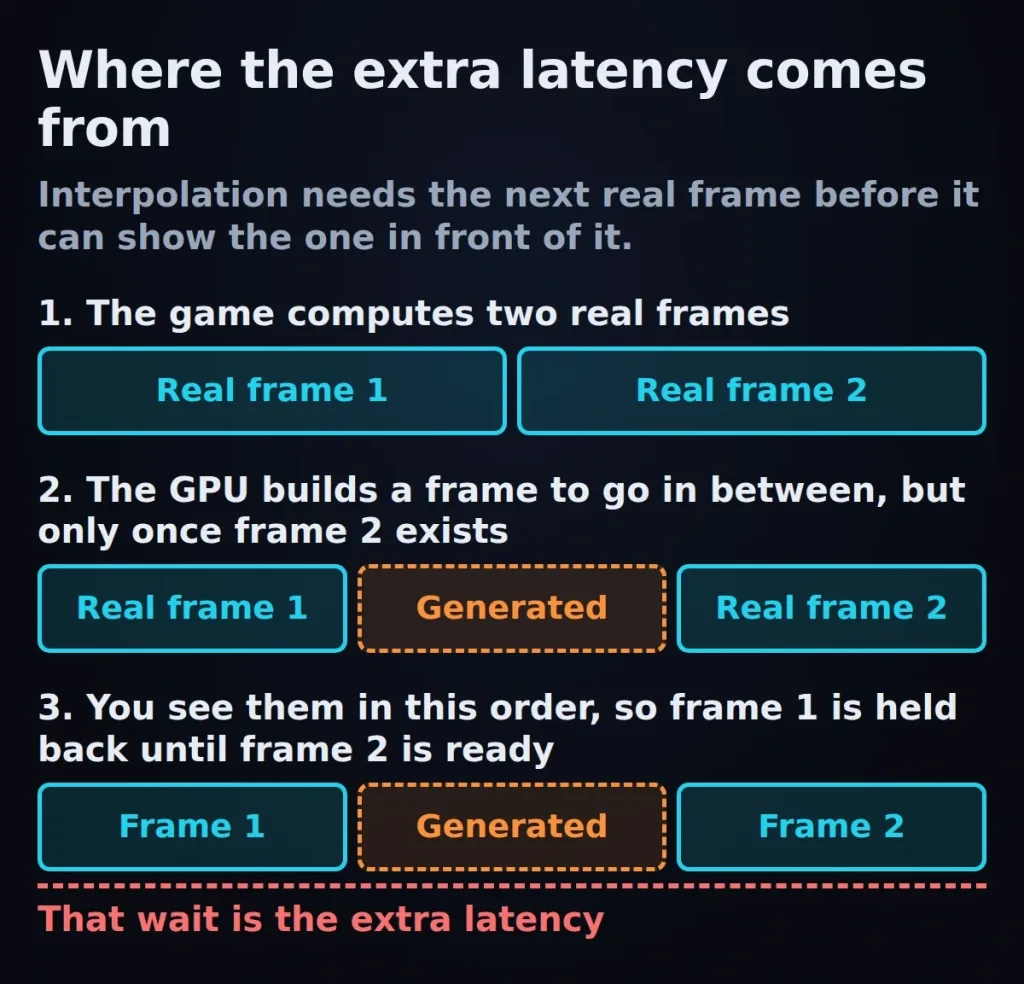
Here is the catch. The extra frames are guesses made from the two real ones. Your mouse and keyboard are still read at the real frame rate, because only real frames come from the game. And to fill in between two real frames, the card has to wait for the second one before it can show the first. That wait is the extra latency. AMD's own guidance calls this step interpolation.
Why more frames do not mean faster response#
If a game really runs at 60 fps, a new real frame arrives about every 16.7 milliseconds. With frame generation at 2X, the counter shows about 120. The game still only updates the world 60 times a second. You see more pictures, but you do not get more chances for the game to react to you.
Multi Frame Generation: more frames, same wait#
Multi Frame Generation adds up to three extra frames per real frame on RTX 50 cards. HotHardware's tests of Dynamic Multi Frame Generation make a useful point: adding more generated frames does not stretch the gap between real frames, so the lag impact is similar whatever multiplier you pick, and smaller than many expect. In other words, going from 2X to 4X mostly adds smoothness, not much extra wait. The base frame rate still matters most.
Dynamic Multi Frame Generation changes the multiplier on its own to hit a target frame rate, which defaults to your monitor's refresh rate. It is limited to RTX 50 cards.
The 60 fps rule (and why the 1% low matters)#
AMD's published guidance is clear: aim for at least 60 fps before interpolation, and avoid frame generation below about 30. Intel's page, as quoted by Tom's Hardware, gives a 40 fps minimum for its frame generation on integrated graphics and 60 as ideal for stronger cards. NVIDIA gave no recommended base frame rate for Multi Frame Generation in the material we read.
Here is plain arithmetic, not a measurement. It shows how often the game really updates at each base frame rate, and what the counter shows at 2X and 4X.
| Real FPS (frame generation off) | Time between real frames | Counter at 2X | Counter at 4X |
|---|---|---|---|
| 30 | 33.3 ms | 60 | 120 |
| 45 | 22.2 ms | 90 | 180 |
| 60 | 16.7 ms | 120 | 240 |
| 90 | 11.1 ms | 180 | 360 |
The counter can read high at 30 real fps, but the game still reacts every 33 milliseconds. That is why 30 fps with frame generation looks smooth and feels slow. Treat the counter figures as nominal: do not assume your game reaches them, check it.
HotHardware also found that responsiveness held up when the real frame rate stayed above roughly 40 fps, and that dips were noticeable. In Hogwarts Legacy the average with frame generation off was 65.7 fps, but the 1% low was 37.8 fps. That gap is the trap. An average of 65 sounds safe, but if it drops to 38 during busy scenes, that is when frame generation feels laggy. Judge your base by the lows, not the average. Our FPS guide shows how to read them.
What independent tests found about lag#
Vendors publish few latency figures for frame generation, so independent tests are the best evidence, and they are a small set.
Tom's Hardware measured PC latency in Alan Wake II with Multi Frame Generation at 4X on several RTX 50 cards, with settings changed per card. Results ranged from about 39 ms on an RTX 5070 to about 55 ms on an RTX 5080, with about 190 to 202 fps on screen. Because settings differ, this is not a card comparison. The author's own guide: under 30 ms is excellent, 30 to 45 ms feels great, 45 to 60 ms is usable, and higher causes noticeable rubber-banding. That is one reviewer's scale in one game from July 2025, not a standard.
HotHardware tested Dynamic Multi Frame Generation on an RTX 5070 Ti at 4K 160 Hz across four games. It found the lag cost smaller than expected, noticeable when the real frame rate dips, and the image mostly clean. The exceptions were flat pre-rendered video in Hogwarts Legacy and distant animated screens in Cyberpunk 2077, which smeared. It saw no significant artifacts in Nioh 3.
Two honest limits: we have no independent latency test of Preset C, FSR frame generation on current Radeons, or Intel's Multi-Frame Generation. If you find one, treat it with the same care.
Step-by-step: turn it on and check it#
- Measure the base first. Turn frame generation off and check your real frame rate and 1% lows in a busy scene. If the 1% low is under about 40, or the average is under 60, fix that first with the steps in our FPS guide.
- Upscale first. DLSS, FSR or XeSS raises the real frame rate, which is the number that sets responsiveness. Set that up before frame generation. RTX owners: see the DLSS settings guide.
- Turn on the latency tool. NVIDIA's Reflex reduces PC latency by synchronising rendering across the GPU and CPU. HotHardware's author states that frame generation requires Reflex. AMD says its frame generation is designed to be paired with Radeon Anti-Lag 2. Enable it in the game's menu if there is an option.
- Turn on frame generation in the game's menu. For DLSS, set it in the game. NVIDIA says Frame Generation must be on in-game before the NVIDIA app's multiplier override applies, and the override works by exiting the game, setting it, and reopening.
- Pick the multiplier (RTX 50). NVIDIA's own guidance for the app override is 3X for targets up to 180 FPS and 4X for 240 or higher. Our rule: choose the lowest multiplier that reaches your screen's refresh rate. For Dynamic Multi Frame Generation, HotHardware describes setting DLSS Override, Frame Generation Mode, to "Dynamic" in the NVIDIA app. Menu wording may have changed, so check the app.
- Test the feel. Flick the mouse quickly in a busy area. If it feels heavy, lower the multiplier, raise the base frame rate or turn frame generation off. A smooth counter is not the test.
AMD, AFMF 2 and Intel in short#
FSR Frame Generation is built into the game. AMD's documentation says to aim for at least 60 fps before interpolation. The machine-learning version is documented for Radeon RX 9000 on Windows 11, and the fallback version needs DirectX 12.
AFMF 2 works in the Radeon driver, so it can add frames to games that have no frame generation of their own. A 2024 Notebookcheck report says it covers DirectX, OpenGL and Vulkan, lists RDNA 2 and newer cards and falls back temporarily in high-motion scenes. That is a 2024 source, so check AMD's current driver notes for support. We have no independent comparison of AFMF 2 against the in-game option, so our suggestion is only this: use the in-game option when the game has one, and AFMF 2 when it does not.
Intel XeSS 3 lists Multi-Frame Generation with up to three generated frames and a latency tool called Xe Low Latency. Intel's page does not say which cards support which feature.
What is new right now#
- Dynamic Multi Frame Generation and 6X mode have been available in the NVIDIA app since 31 March 2026, on RTX 50 cards with driver 595.97 or newer. NVIDIA's announcement page does not call them a beta.
- Frame Generation Performance Mode (Preset C) is an NVIDIA app beta announced on 13 October 2026 for RTX 40 and 50. NVIDIA says it is up to 35% faster on an RTX 5060. That is NVIDIA's claim and it gives no latency figure.
- Reflex Frame Warp is listed as "coming soon" on NVIDIA's Reflex page. We do not treat it as available.
- DLSS 5 is separate. NVIDIA presents it as neural rendering for lighting and materials on RTX 50 cards, not a replacement for frame generation. See our DLSS settings guide.
Troubleshooting#
It feels laggy even though the counter is high. Your real frame rate is too low or dips. Check the 1% lows with frame generation off. Go back to upscaling and trimming settings before anything else.
Text, video or distant screens look smeared. HotHardware saw this on pre-rendered video and distant animated screens in two games. It is a known kind of artifact, not a sign that your card is faulty. Try a lower multiplier or turn it off for that game.
The option is greyed out or missing. Check that your card is on the table above, that your driver is current and that the game actually offers it. DLSS Frame Generation is not listed for RTX 30 and older cards.
The counter is lower than base times multiplier. Do not assume the nominal figure. Measure it in your game and trust that number.
Stutter when you turn it on. Make sure the game is on a stable base first. If it only appears in busy scenes, that is the 1% low problem described above.
Frequently asked questions#
Does frame generation add input lag?
Yes, a little. It has to hold back a real frame to fill in between two real frames, and the game still reads your input at the real frame rate. Independent tests show how much depends on the game and base frame rate. NVIDIA and AMD publish no general latency number.
What frame rate do I need before turning it on?
AMD recommends at least 60 fps before interpolation and says to avoid sub-30. HotHardware found responsiveness holds above roughly 40 fps in its tests. Use your 1% low, not the average.
Is frame generation the same as DLSS upscaling?
No. Upscaling renders fewer pixels and raises the real frame rate. Frame generation adds extra frames and does not change how often the game reads your input. They are separate settings and are often used together.
Does frame generation work on RTX 30 cards?
NVIDIA lists DLSS Frame Generation for RTX 40 and 50 cards, not RTX 30. Some games also offer FSR frame generation. We have not verified it on GeForce cards, so check the game's menu.
Is Multi Frame Generation better than 2X?
It gives more smoothness on a very high-refresh screen. HotHardware reports the lag cost is similar whatever the multiplier. A sensible rule is to use the lowest multiplier that reaches your refresh rate.
Should I use it in competitive shooters?
It is your call, and there is no vendor number to settle it. Frame generation does not increase how often the game reads your input, and it can add a little latency, so many competitive players prefer to keep the real frame rate high and test it before relying on it.
What is the difference between FSR frame generation and AFMF 2?
FSR frame generation is built into the game. AFMF 2 is in the Radeon driver and works with games that do not have it. Use the in-game option when there is one.
Is DLSS 5 frame generation?
No. NVIDIA describes DLSS 5 as neural rendering for lighting and materials, separate from Frame Generation. It is RTX 50 only and optional.
Conclusion#
Frame generation is a smoothness tool, not a speed tool. It makes a high-refresh screen look better when the game already runs well, and it does little for a game that runs badly. The rule from AMD's guidance and the independent tests is the same: get to a stable 60 fps base first, watch your 1% lows, add Reflex or Anti-Lag, then turn on the lowest multiplier that fills your screen's refresh rate.
If it feels heavy, trust the feel, not the counter. Lower the multiplier or turn it off. Do not use it to rescue 30 fps.
Next, see how it fits with the other steps in our FPS guide, or compare current cards in our RTX 5070 vs RX 9070 comparison.
Sources
- NVIDIA: GeForce at GDC 2026: DLSS 4.5, Dynamic Multi Frame Generation and 6X mode
- NVIDIA: DLSS 4 and Multi Frame Generation
- NVIDIA: DLSS 5 comes to Hogwarts Legacy and RTX Spark laptops (13 October 2026)
- NVIDIA: NVIDIA app update adds DLSS 4 overrides
- NVIDIA: Reflex
- AMD GPUOpen: FSR Frame Generation
- AMD: FSR technologies page
- Intel: Arc gaming technologies (XeSS 3)
- Tom's Hardware: Input latency is the all-too-frequently missing piece of framegen-enhanced gaming performance analysis (18 July 2025)
- HotHardware: NVIDIA DLSS 4.5 tested: the real-world impact of Dynamic Multi-Frame Generation (31 March 2026)
- Notebookcheck: AMD Fluid Motion Frames 2 technical preview (30 July 2024)
Comments
No comments yet. Be the first.
Leave a comment
Loading comments...