To increase FPS on PC, work in a fixed order and stop as soon as the game feels right: measure first, then use upscaling, then trim the heaviest settings, then add frame generation if your card supports it, and only then touch system settings. Most guides give you 40 tips in a flat list. This one gives you six steps in the order that matters, and it says which tips have a published number behind them and which do not.
That last part matters. Several popular tweaks, such as memory profiles, Resizable BAR and Windows' GPU scheduling option, have no frame-rate figure from the companies that make them. Microsoft describes its GPU scheduling setting as reducing CPU load, not as adding FPS. Intel and AMD both say memory profiles can help gaming, and neither page gives a number. When a number does not exist, we say so instead of inventing one.
The guide is written around the cards most PC gamers actually own. In Valve's September 2026 Steam survey, the most common cards were the RTX 5070, RTX 5060, RTX 5060 Ti, RTX 4060 and RTX 3060, with the GTX 1650 still above 2%. That is why the steps below cover RTX 50, 40 and 30 cards, older GTX cards and Radeon separately. Steam's survey is a self-selected sample, so treat the shares as a guide, not a census.
CoreLoadout has not benchmarked these settings. This is a verified-spec guide built from vendor documentation, not a review. Use the table of contents to jump to your step.
Verified against: DLSS 4.5 and NVIDIA Game Ready driver 595.97 (NVIDIA, March 2026), NVIDIA's DLSS 5 pages (September and October 2026), AMD FSR SDK 2.2 (23 March 2026) and AMD's FSR page updated 22 June 2026. DLSS 5 is RTX 50 only and adds lighting and material detail; it is not an upscaler. Last updated 20 October 2026.
The quick answer: six steps in order#
Stop at the first step that gets you to your target. Each step links to a deeper guide where one exists.
| Step | What to do | Who it applies to | Published number from the vendor? |
|---|---|---|---|
| 1 | Measure average FPS and 1% lows | Everyone | Not applicable |
| 2 | Turn on upscaling (DLSS, FSR or XeSS) | Everyone with a supported game | Render scales are published (see Step 2); FPS gains are not |
| 3 | Lower the heaviest in-game settings, one at a time | Everyone | No: it varies by game |
| 4 | Add frame generation | RTX 40 and 50, Radeon RX 9000, some others | Vendors give example figures only (see Step 4) |
| 5 | Enable your memory profile, update drivers, check Windows options | Everyone | No official FPS figure for any of these |
| 6 | Upgrade the GPU | If steps 1 to 5 are not enough | Not applicable |
Step 1: Measure before you change anything#
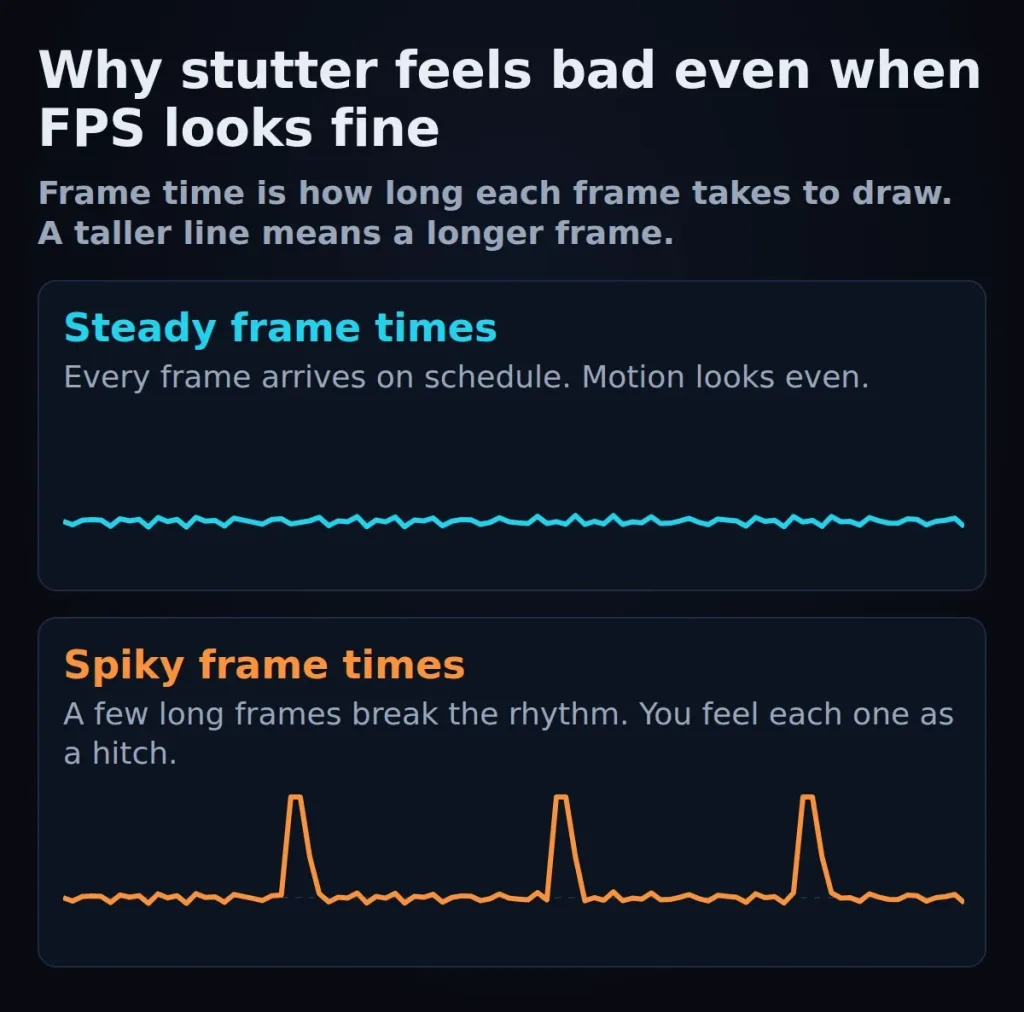
You cannot tell whether a change helped if you do not know where you started. Measure two things in the same scene: your average FPS and your 1% low. The 1% low is how the slowest frames behave, and it is what you feel as stutter, even when the average looks fine.
The free tool to use is Intel's PresentMon, published on GitHub by Intel's GameTechDev group. It reports frame time, CPU and GPU busy times, displayed FPS and summary figures including the 99th, 95th and 90th percentile frame rates. Many games and the NVIDIA and AMD overlays also show an FPS counter, which is enough to start.
Then run one quick test to learn what is holding you back. Lower the resolution, or switch upscaling to a lower internal resolution, in the same scene. If FPS rises a lot, your graphics card is the limit, and Steps 2 to 4 will help. If FPS barely moves, your processor or memory is the limit, and lowering graphics settings will not do much. In that case jump to Step 5.
Write down the numbers. You will compare against them after every step.
Step 2: Turn on upscaling#
Upscaling renders the game at a lower resolution and rebuilds the image at your screen resolution. It is the biggest lever when the graphics card is the limit, because the card draws far fewer pixels.
What each card gets#
| Your card | Upscaling | Frame generation |
|---|---|---|
| GeForce RTX 50 | DLSS Super Resolution (all RTX cards get the DLSS 4.5 version via the NVIDIA app) | DLSS Frame Generation and Multi Frame Generation (up to 3 extra frames); Dynamic Multi Frame Generation and 6X mode, available in the NVIDIA app since 31 March 2026 (RTX 50 only, driver 595.97 or newer) |
| GeForce RTX 40 | DLSS Super Resolution | DLSS Frame Generation (not Multi Frame Generation) |
| GeForce RTX 30 and 20 | DLSS Super Resolution | Not listed on the NVIDIA pages we read |
| GeForce GTX | Not DLSS: NVIDIA lists DLSS for RTX cards only. FSR 3.x may be an option in games that offer it (see the note below the table) | Not applicable |
| Radeon RX 9000 | FSR Upscaling (machine-learning version, FSR 4.x) | FSR Frame Generation (machine-learning version) |
| Radeon RX 7000 | Machine-learning FSR upscaling (added for RX 7000 in June 2026) | FSR 3.x Frame Generation (fallback version) |
| Radeon RX 6000 and older | FSR 3.x fallback modes (machine-learning upscaling on RX 6000 is announced for 2027, not shipped) | FSR 3.x Frame Generation on RX 5000 and newer |
| Intel Arc | XeSS 3 lists Super Resolution, Multi-Frame Generation and Xe Low Latency | See Intel's page: it does not state which cards support which feature |
A note on GTX cards: AMD says its FSR 3 fallback runs on Radeon RX 500 and newer "or equivalent" GPUs from other vendors, with Shader Model 6.2 and DirectX 12. It does not name GeForce GTX cards. If you own one, check whether your game offers FSR in its graphics menu, and use that as the test.
Pick a quality mode#
Every upscaler has quality modes. They differ in how many pixels the game really renders before rebuilding the image. These are the published render scales:
| Mode | Internal resolution as a share of screen resolution | Example at 1440p output | Example at 1080p output |
|---|---|---|---|
| Quality | about 67% | about 1707 x 960 | about 1280 x 720 |
| Balanced | 58% (DLSS) / 59% (FSR) | about 1485 x 835 | about 1253 x 704 |
| Performance | 50% | 1280 x 720 | 960 x 540 |
| Ultra Performance | 33% | about 853 x 480 | about 640 x 360 |
The percentages come from NVIDIA's DLSS documentation and AMD's FSR documentation. The pixel examples are our own arithmetic from those percentages.
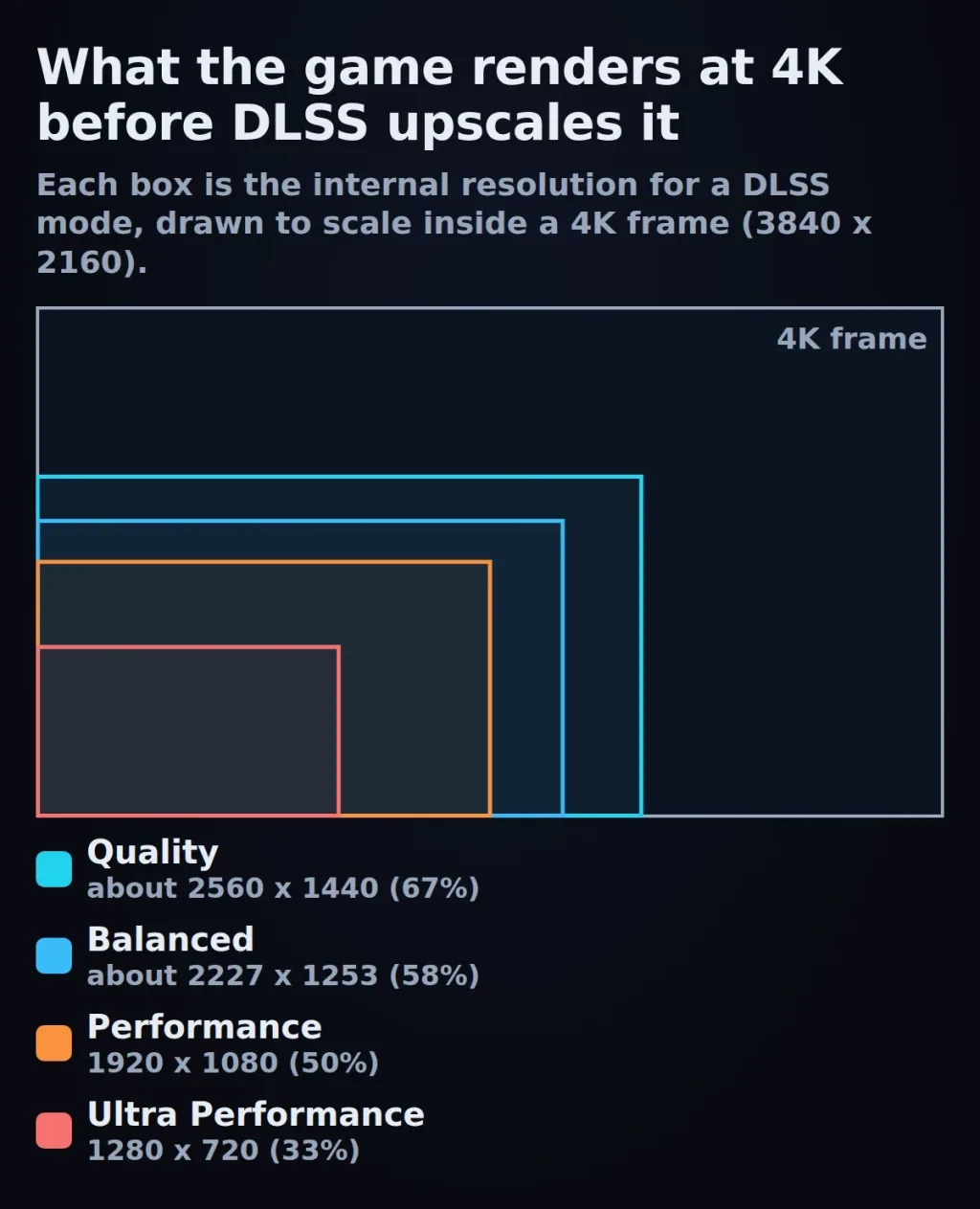
Start with Quality. If you still miss your target, move to Balanced, then Performance. Ultra Performance is a last resort, and it is best kept for 4K screens, where 33% is still 1280 x 720.
For a card-by-card breakdown of what DLSS does on RTX 30, 40 and 50, see our DLSS guide. If you own a GTX card or a Radeon, see our FSR guide.
Step 3: Lower the settings that cost the most#
After upscaling, trim the settings that cost the most frames for the least visible difference. Which settings those are depends on the game, and no vendor publishes a single ranked list that is true everywhere, so there is no honest universal percentage to give you.
The method works in any game:
- Change one setting at a time.
- Re-measure average FPS and 1% low in the same scene as Step 1.
- Keep the change only if you gain frames and cannot see the loss.
Ray tracing, volumetric effects (fog, clouds), shadow quality and reflection quality are options many players try lowering first. This is our general guidance, not a vendor-published list. Texture quality is usually different: it mostly affects video memory use rather than speed, so it is often worth leaving as high as your card's memory allows. If the game stutters after you raise it, that is a sign you went too far.
NVIDIA has published per-game performance guides that show how much each setting costs in that particular game. The ones we found are for older titles, so use them as a model of the method, not as current numbers.
For worked examples on the cards most players own, see our settings guide for RTX 5060 and RTX 4060 class cards, and our GPU buying guides if the numbers say you need a stronger card.
Step 4: Add frame generation, but only on a solid base#
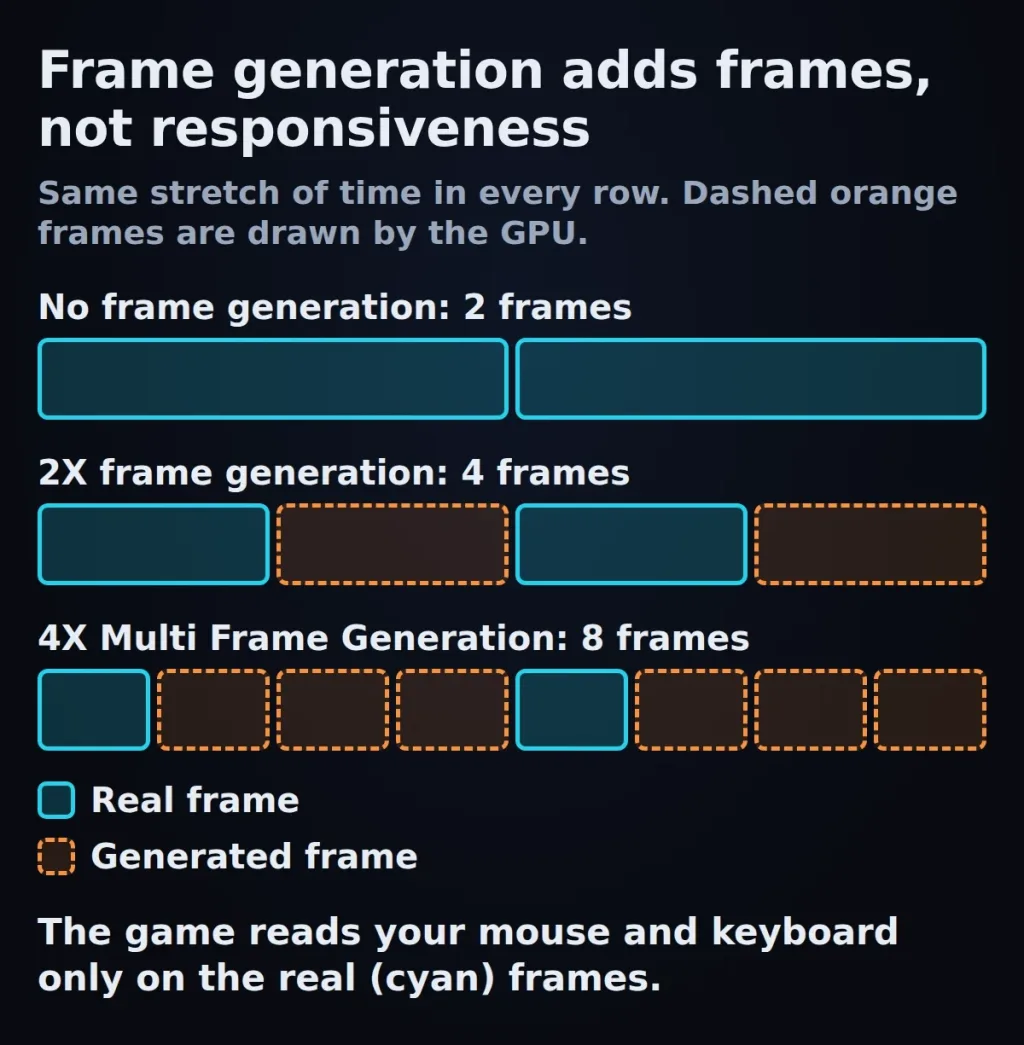
Frame generation inserts extra frames between the ones the game really renders. The counter goes up, and the picture looks smoother. It does not make the game react faster. The game still reads your mouse and keyboard at the real frame rate, so a low real frame rate with frame generation on can look smooth and still feel slow.
What the vendors publish:
- AMD's guidance: interpolate from at least 60 fps. Below 60, artifacts become more visible, and input below 30 fps should be avoided entirely. AMD says its frame generation is designed to be paired with Radeon Anti-Lag 2 and FSR Upscaling for low latency.
- NVIDIA: Multi Frame Generation creates up to three additional frames per rendered frame on RTX 50 cards. NVIDIA also shows one Cyberpunk 2077 scene on an RTX 5090 in which latency is roughly halved with its full DLSS 4 feature set. That is one scene on the most powerful card, not a general result.
- NVIDIA Reflex: the Reflex software development kit reduces system latency in games that support it. NVIDIA's original announcement (September 2020) listed support back to GeForce GTX 900 cards and gave one figure: up to 33% better responsiveness on a GTX 1660 Super at that time. Treat that as history, not a promise for any current game.
We have not found independent, current measurements of frame-generation latency on a page we can cite, so we do not give a latency number. A sensible rule that matches AMD's published guidance: get to a stable 60 fps with upscaling and trimmed settings first, then add frame generation to reach a high-refresh display. Do not use it to rescue 30 fps.
For the deeper explanation, see our frame generation guide.
Step 5: Fix the system settings#
These are worth doing once, and none of them has an official FPS number. Treat them as housekeeping, not as the fix.
- Enable your memory profile. Memory boots at a standard default speed. Intel says an XMP profile must be selected in the BIOS before the memory runs at its rated speed. AMD offers EXPO profiles for DDR5 on Ryzen AM5. Both say it can help gaming and neither gives a figure. Both also warn that overclocking can void warranties, so read your motherboard's manual first.
- Update your graphics driver. DLSS 4.5 Dynamic Multi Frame Generation, for example, needs NVIDIA driver 595.97 or newer.
- Resizable BAR. Intel describes it as letting the processor move data to the graphics card's memory in larger transfers, and says frame-time spikes are generally larger without it on Intel Arc cards. It needs a 10th Gen or newer Intel Core, or most Ryzen 3000 and all Ryzen 5000 processors, plus a BIOS setting. We have not verified a measured effect on NVIDIA or AMD cards, so we do not promise one.
- Hardware-accelerated GPU scheduling. It is in Windows under Settings, Graphics, Advanced graphics settings, and appears only if your card and driver support it. Microsoft says it reduces CPU load. Microsoft does not claim it raises frame rates.
- Variable refresh rate. If your monitor supports it, Windows can enable it for DirectX 11 games that lack their own support. It smooths how frames are shown, which is different from adding frames.
Skip "game booster" programs, registry tweaks and similar. We found no vendor documentation that supports their claimed gains.
Step 6: When the answer is hardware#
If you have done Steps 1 to 5 and still cannot reach your target at a resolution you like, the card is the limit. Pick by the resolution you play at:
- 1080p on a tight budget: see Best GPU Under $300 for 1080p Gaming.
- 1440p: see Best GPU for 1440p Gaming Around $500.
- 4K: see Best GPU for 4K Gaming in 2026.
- Choosing between two popular cards: see RTX 5070 vs RX 9070.
- Everything in one place: see Best Graphics Cards for Gaming in 2026.
Troubleshooting: common problems#
My average FPS is fine, but the game stutters. Look at the 1% low, not the average. Large gaps between the two mean frame-time spikes. Test a lower texture setting, a different quality mode and, on a supported platform, your memory profile.
Frame generation feels laggy even though the FPS counter is high. Your real frame rate is probably too low. Check the frame rate with frame generation off. If it is under 60, go back to Steps 2 and 3 first.
Lowering graphics settings changes nothing. You are probably limited by the processor or memory, not the card. Repeat the Step 1 test, and look at the system settings in Step 5.
The upscaling option is missing in a game. Not every game supports every upscaler. On NVIDIA cards, the NVIDIA app's DLSS Override can apply a render scale in some games without built-in support, from 33% to 100%, with driver 572.83 or newer (NVIDIA, March 2025). Results depend on the game.
FSR looks worse than DLSS on my screen. The machine-learning version of FSR is available on Radeon RX 7000 (since June 2026) and RX 9000 cards. On other cards, AMD's fallback versions are used, and AMD itself describes the machine-learning version as an improvement over FSR 3.1 in motion and detail.
Frequently asked questions#
What should I change first to get more FPS?
Measure your average FPS and 1% low, then turn on upscaling at Quality mode. Upscaling is the biggest lever when the graphics card is the limit.
Does DLSS work on my graphics card?
DLSS Super Resolution works on GeForce RTX cards. Frame Generation works on RTX 40 and 50 cards, and Multi Frame Generation is RTX 50 only. GTX cards are not on NVIDIA's list.
Does FSR work on a GTX 1650 or GTX 1060?
AMD says FSR 3 fallback modes run on Radeon RX 500 and newer "or equivalent" GPUs from other vendors, but does not name GeForce GTX cards. Check your game's graphics menu for an FSR option and test it.
Does frame generation add input lag?
Frame generation shows more frames but the game still responds at the real frame rate. AMD recommends starting from at least 60 fps. NVIDIA and AMD both pair frame generation with latency-reduction tools. We have no independent latency measurements to cite.
Should I turn on XMP or EXPO?
Memory runs at a default speed until you enable a profile in the BIOS. Intel and AMD both say profiles can help gaming, and neither gives a figure. Both warn that overclocking can affect your warranty.
Does Hardware-accelerated GPU scheduling increase FPS?
Microsoft says it reduces CPU load. Microsoft does not claim it increases frame rates, so do not expect a gain.
Is Resizable BAR worth enabling?
On Intel Arc, Intel says it matters. For NVIDIA and AMD cards we have not verified a measured effect, so we do not promise one. It needs a supported processor and a BIOS setting.
When should I buy a new graphics card instead?
When Steps 1 to 5 still leave you below your target at the resolution you want. Pick the guide for your resolution in Step 6.
Conclusion#
More FPS comes from doing the right things in the right order. Measure first, so you know whether the graphics card or the processor is the limit. If it is the card, upscaling is the biggest lever: start at Quality mode, which renders at about two-thirds of your screen resolution, and move down only if you need to. Then trim the heaviest settings one at a time, and re-measure after each change.
Add frame generation last, and only on a base of about 60 fps or more. It makes the picture smoother, but it does not make the game respond faster. Treat system settings as housekeeping: enable your memory profile, keep your driver current and check your BIOS, but do not expect a published number from any of them, because none exists.
If you reach the end of the list and still miss your target, the honest answer is hardware. Our GPU guides are organised by resolution and budget, so you can pick without guessing. This guide will be updated as DLSS, FSR and XeSS change, with the version numbers stated at the top each time.
Sources
- NVIDIA: GeForce at GDC 2026: DLSS 4.5, Dynamic Multi Frame Generation and 6X mode
- NVIDIA: DLSS 4 and Multi Frame Generation
- NVIDIA: NVIDIA app update, DLSS Override and custom scaling (25 March 2025)
- NVIDIA Developer: Tips for the DLSS Unreal Engine plugin (default render scales)
- NVIDIA: DLSS 5: neural rendering and NBA 2K27
- NVIDIA: Introducing NVIDIA Reflex (1 September 2020)
- AMD: FSR technologies page
- AMD GPUOpen: FSR SDK 2.2 release (23 March 2026)
- AMD GPUOpen: FSR 4, FSR Upscaling and FSR Frame Generation
- Intel: Arc gaming technologies (XeSS 3)
- Intel: Resizable BAR on Intel Arc graphics and Intel XMP
- AMD: EXPO technology
- Microsoft: DirectX Developer Blog: the redesigned Graphics settings page
- Intel GameTechDev: PresentMon
- Steam Hardware & Software Survey, September 2026 (Valve)
Comments
No comments yet. Be the first.
Leave a comment
Loading comments...